

Luminous Hair - VRChat Hair / CP18
 MetaCreatorsTYO EN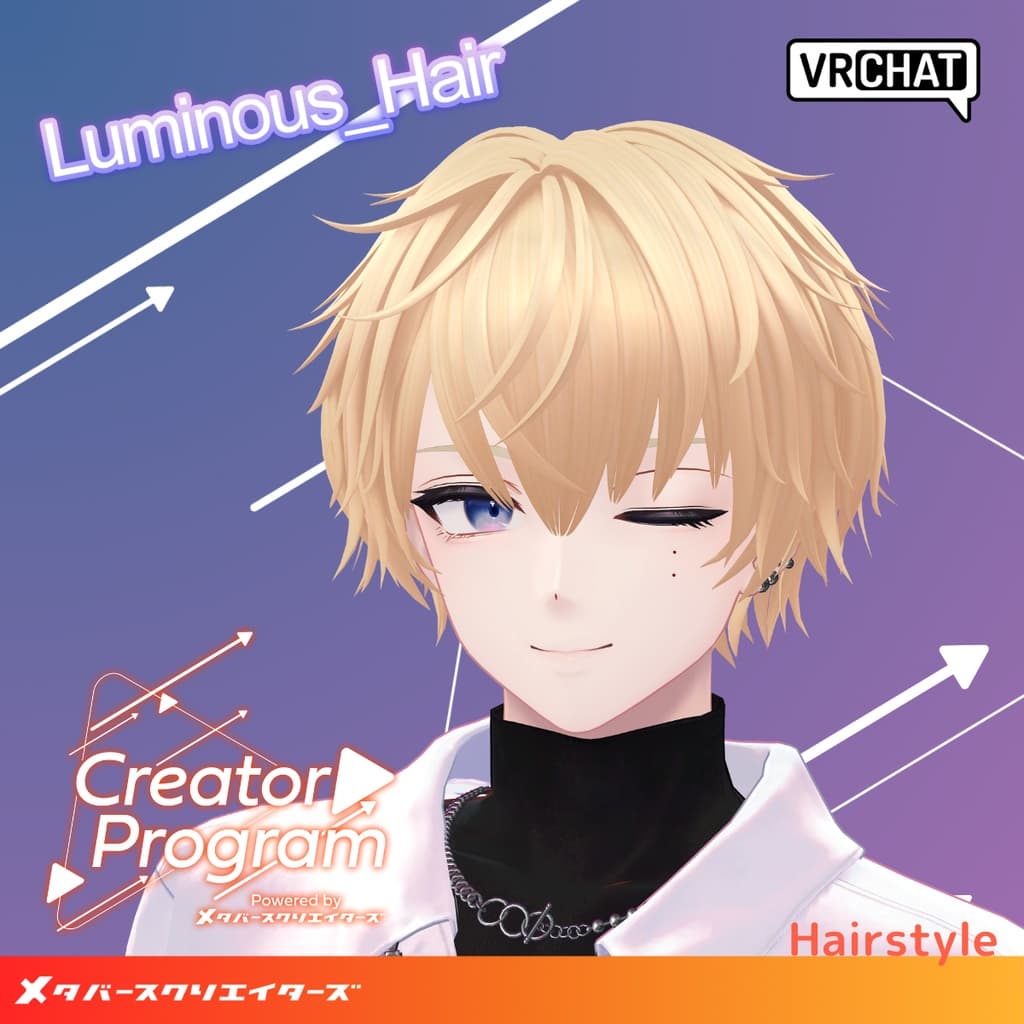
説明
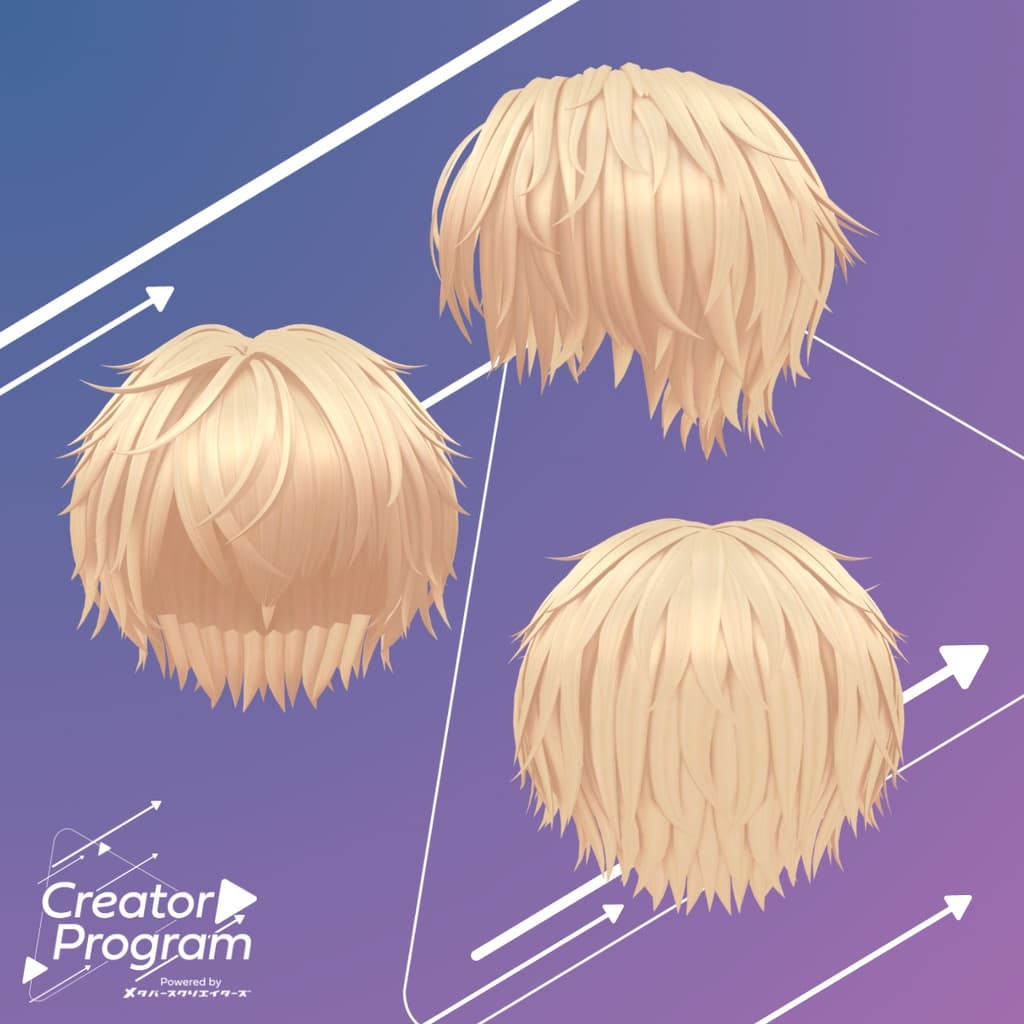
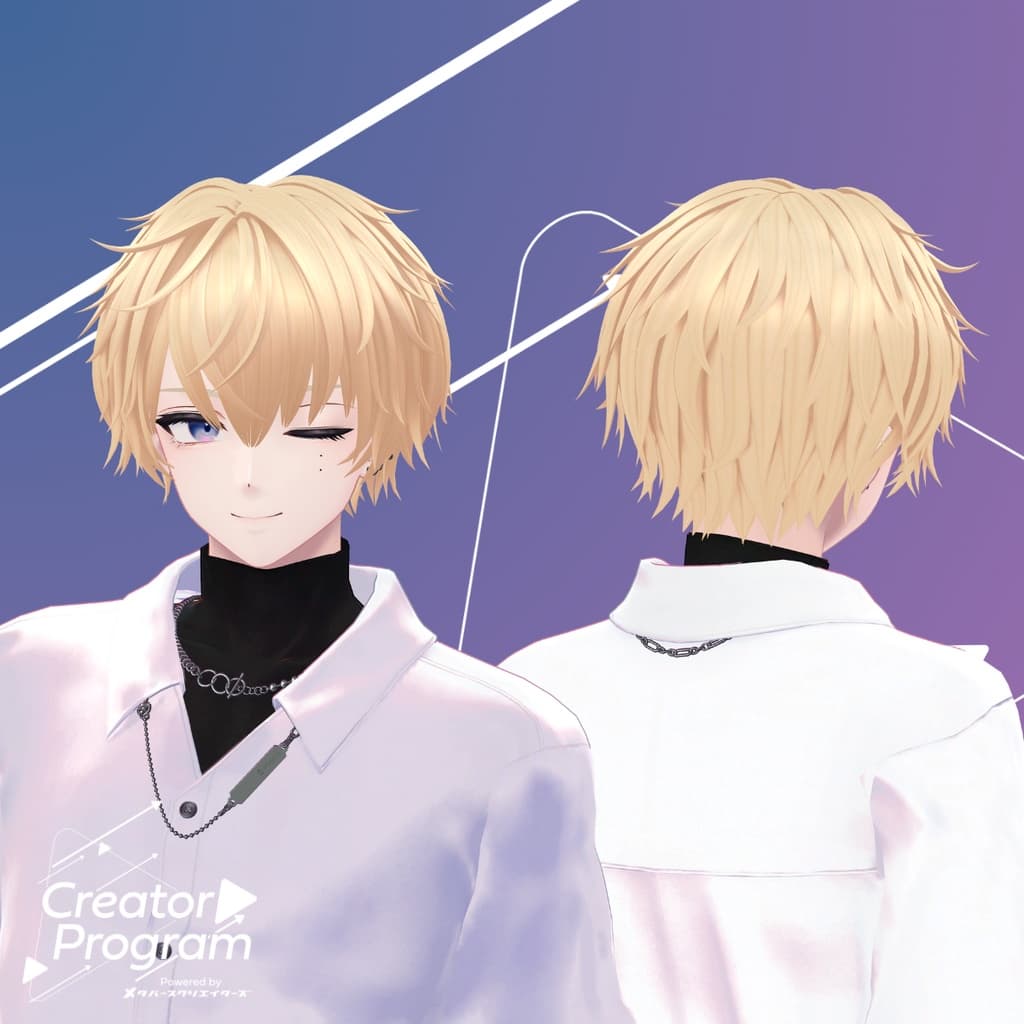
◆ Luminous_Hair ◆
Creator: Maori Toy Shop
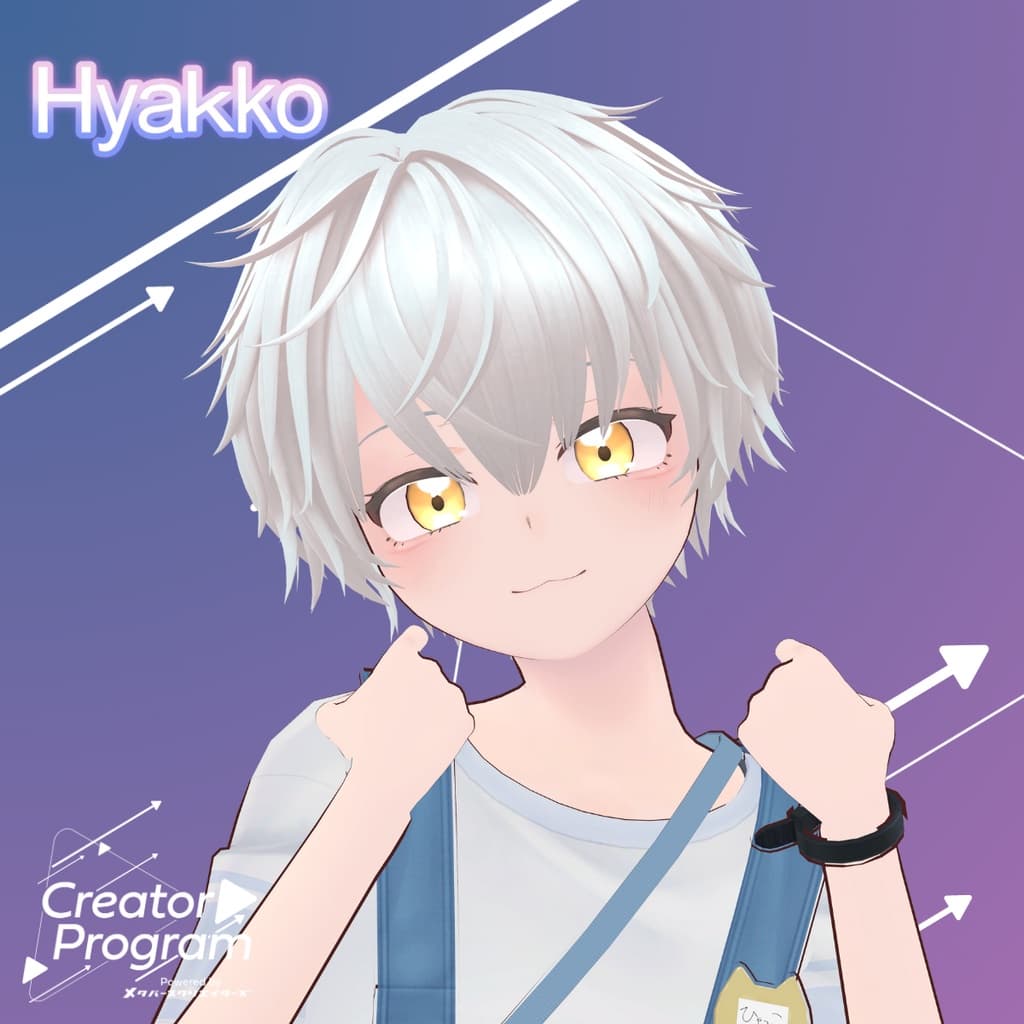
A hair model designed with a calm and composed atmosphere — but with just a touch of playful mischief peeking through.
Note:
This product is a hairstyle model for avatars. It does not include the avatar body data.
Due to the nature of digital downloads, returns and refunds are not possible. Please read and agree to the product description and terms of use before purchasing.
◆ Item Overview ● Contents
Luminous_Hair.Unitypackage
FBX file
PSD file for customization
ReadMe.txt (this document)
● Shader Used
liltoon https://lilxyzw.booth.pm/items/3087170
● Required Asset
Modular Avatar https://modular-avatar.nadena.dev/ja/docs/intro
● Model Data
Total polygons: 19,358
Base: 914 polygons
Hair: 18,444 polygons
Meshes: 2
Materials: 1
PB Components: 29
Import folder path: Assets > MetaverseCreators_CP > Maori > Luminous_Hair
◆ Supported Avatars
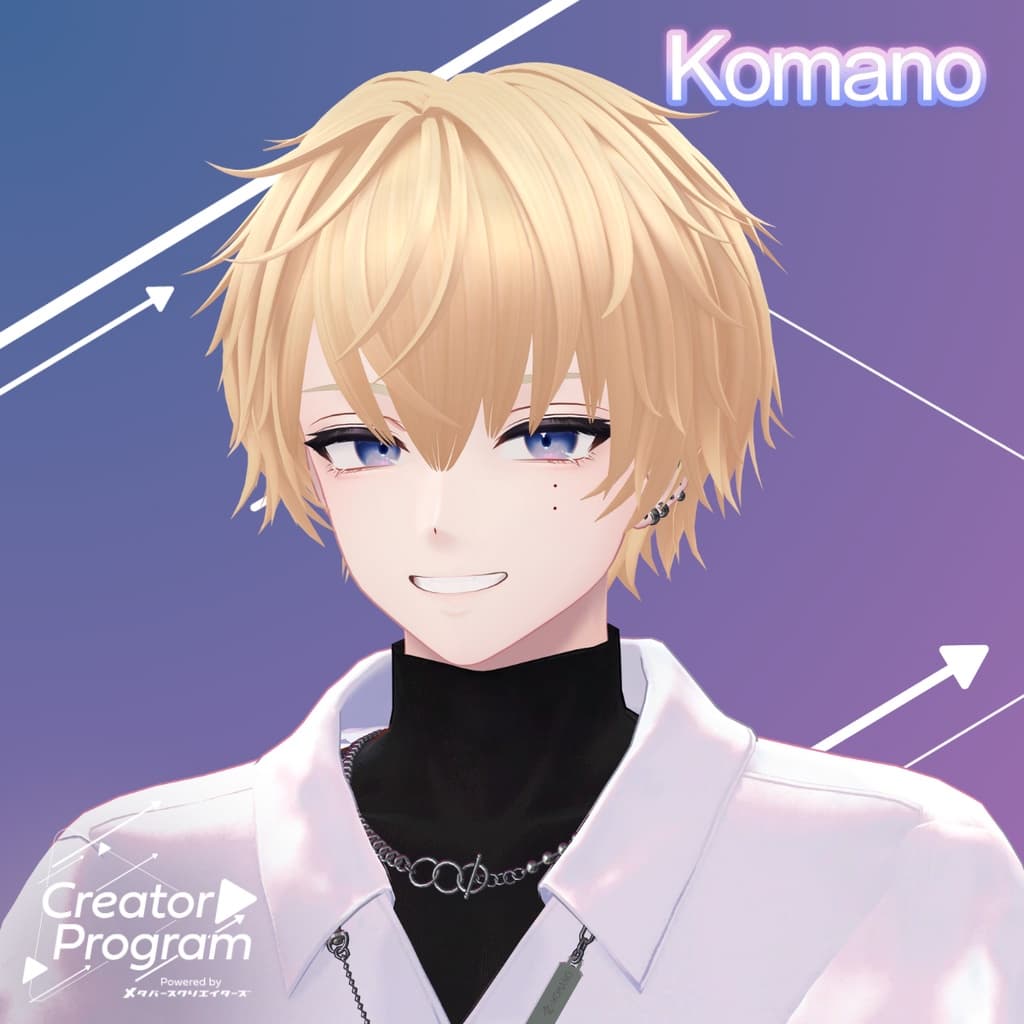
“Hyakko” – by Niyami https://booth.pm/ja/items/6328134
This model includes semi-compatible adjustments (made in Unity) for certain other avatars. The following avatars have been pre-adjusted for semi-compatibility:
[Original 3D Model] Komano https://booth.pm/ja/items/5260363
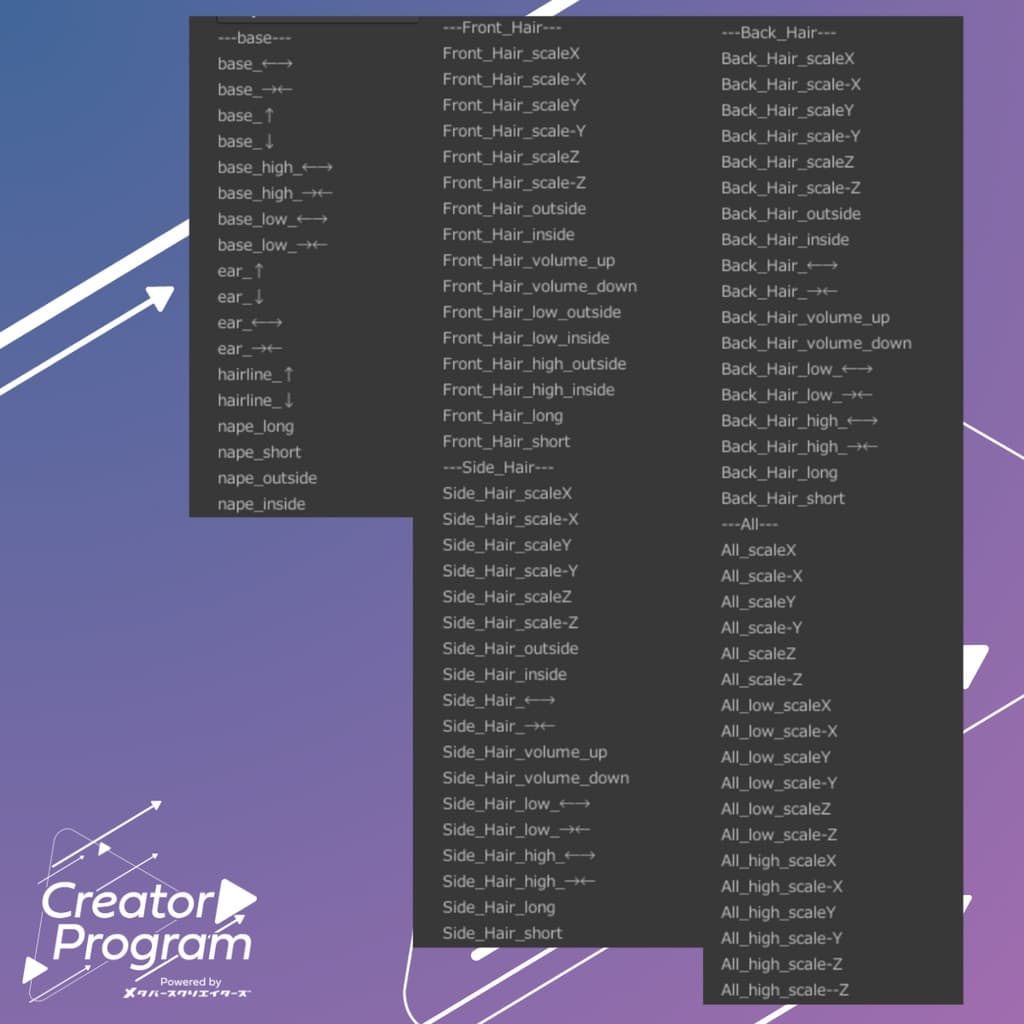
The model comes with many shape keys for adjusting overall size and position, so you can try fitting it to avatars not listed above as well.
For more detailed visuals and adjustment examples, please refer to the product images on the store page.
◆ Installation Instructions
Set up the latest version of the VRC SDK in VCC.
Install the required assets (liltoon, Modular Avatar) via VCC.
Import the latest package of your avatar.
Import this hair package.
Drag and drop your avatar (or its customization prefab) into the Scene Hierarchy.
Hide or set to “Editor Only” any unnecessary avatar parts (such as default hair or attached ears).
Drag and drop ItemName◯◯_AvatarName.Prefab directly under your avatar.
Adjust the scale, position, and shape key values to fit your avatar. (If an already-adjusted prefab is included, this step is not necessary.)
Upload your avatar from the VRC SDK.
◆ Changing Colors
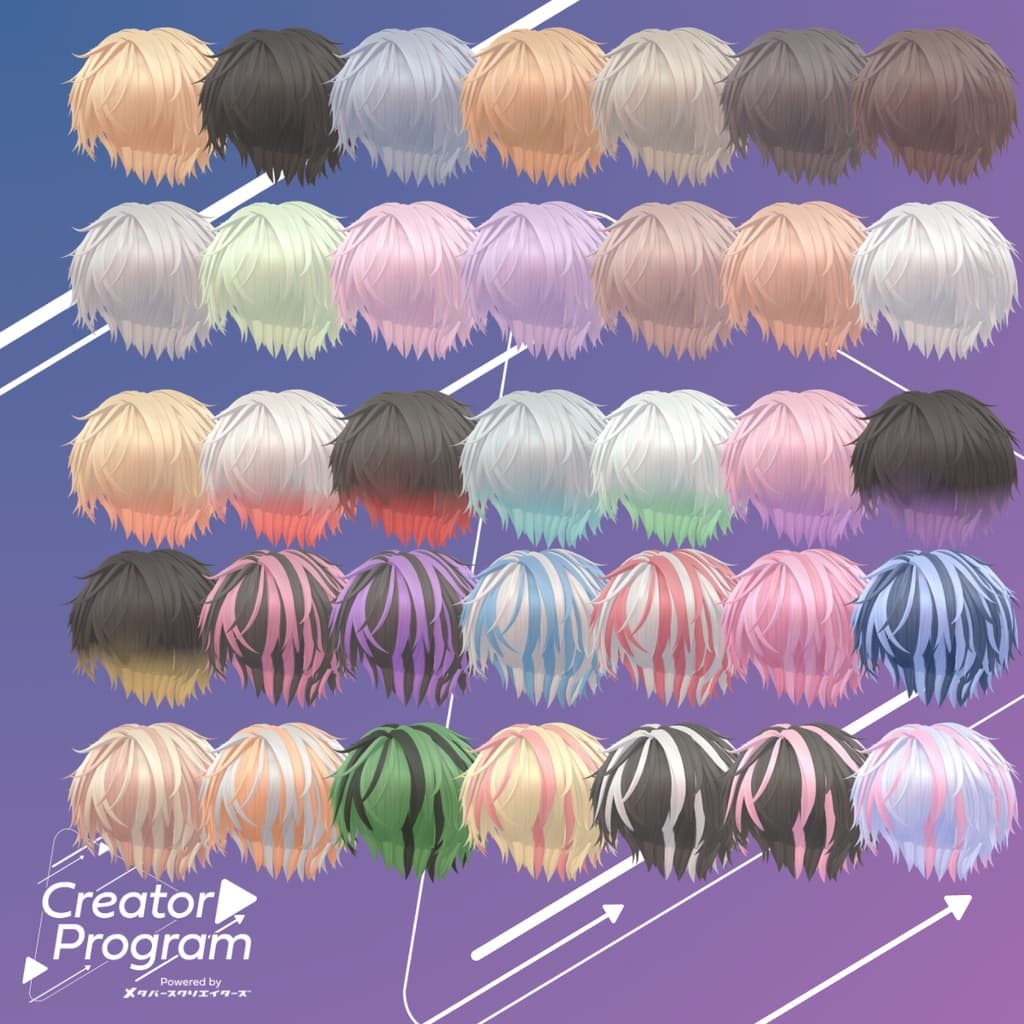
You can change colors by swapping color-variation textures located in the Luminous_Hair > Tex folder and applying them to the material.
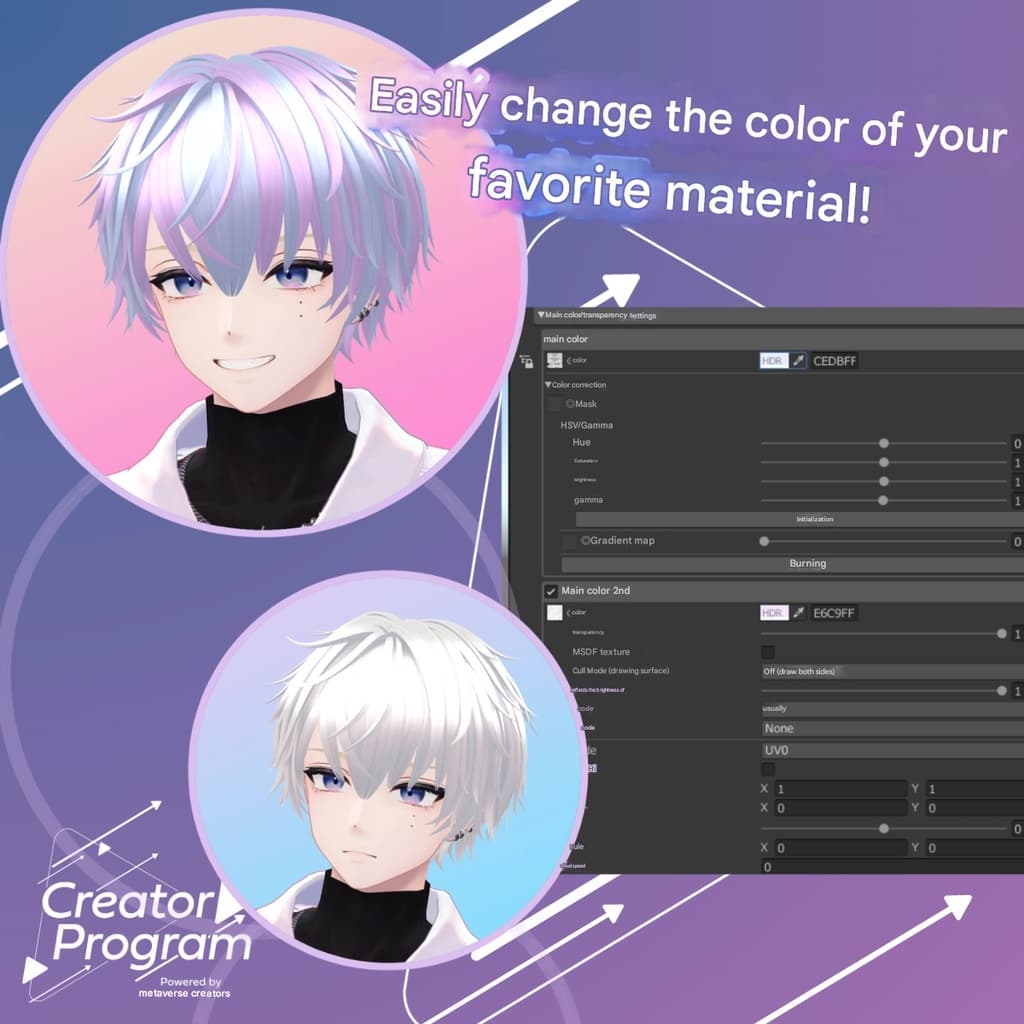
This product also includes customizable materials, allowing you to create mesh or gradient effects directly within Unity.
How to use:
From the Luminous_Hair > Mat folder, choose either "kaihen_gradation" or "kaihen_mesh" (depending on whether you prefer a gradient or mesh look).
Assign the chosen material to both meshes within the Luminous_Hair hierarchy (Luminous_Hair and Luminous_Hair_Base).
In the Inspector, adjust the parameters of the customizable material.
Use the HDR settings of Main Color and Main Color 2nd in liltoon to create your preferred color combination.
Once you’re satisfied, you can upload directly.
For more detailed customization, you can use the included PSD file.
◆ Terms of Use
https://drive.google.com/drive/folders/1qRMXoIxM1ZgacBPfwOigQRtXP1vCbNMn?usp=sharing
Please comply with the terms of use of the base avatar when using this product.
◆ Production Environment
Modeling: Blender Ver. 3.2.0
Textures: CLIP STUDIO PAINT
Setup: Unity Ver. 2022.3.22f1
VRChat SDK - Avatars Ver. 3.8.1 (VCC)
liltoon 1.10.3
ModularAvatar 1.12.5
◆ Credits
Creator: Maori Toy Shop https://maorigangu.booth.pm/
Support / Inquiries: https://discord.gg/bmw3PWE37M
◆ Update History