

VEVENTS NOTIFY メッセージ放送プレハブ 【 FREE 】
 vevents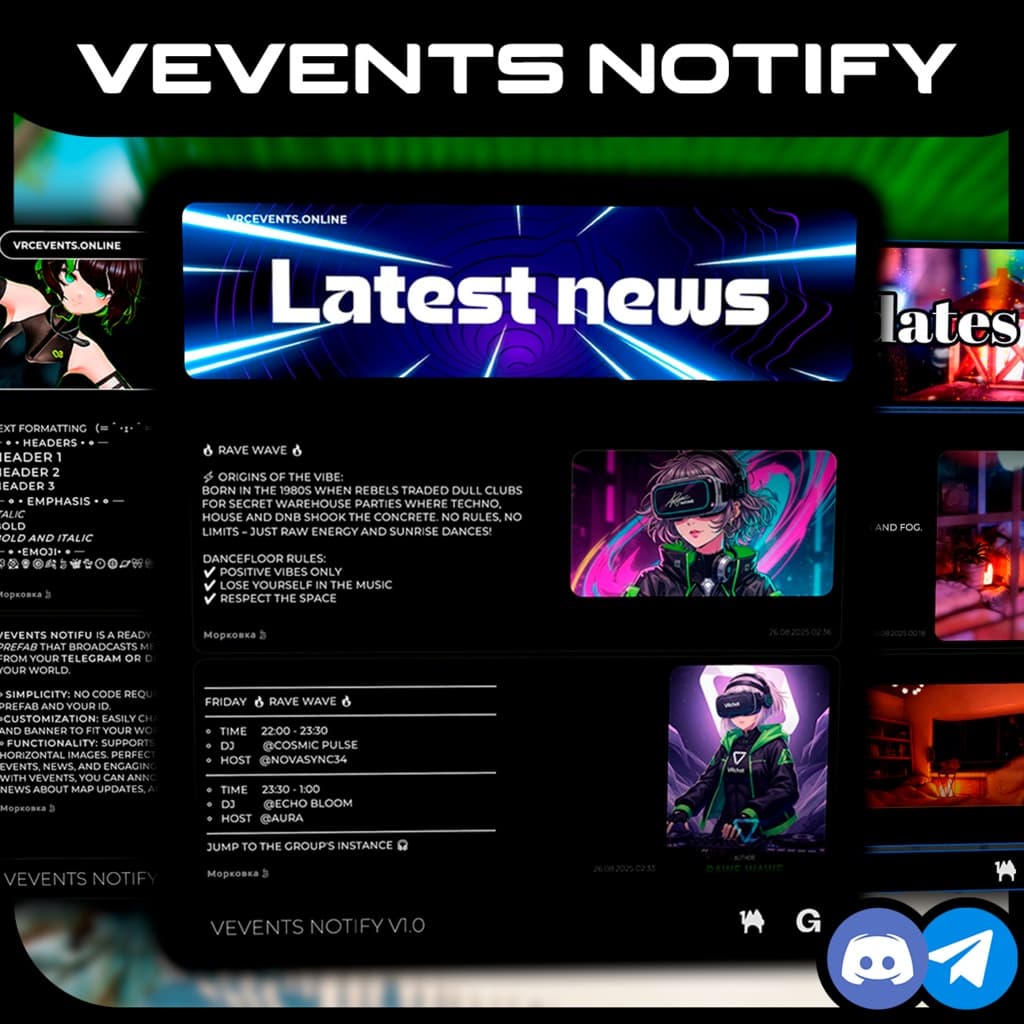
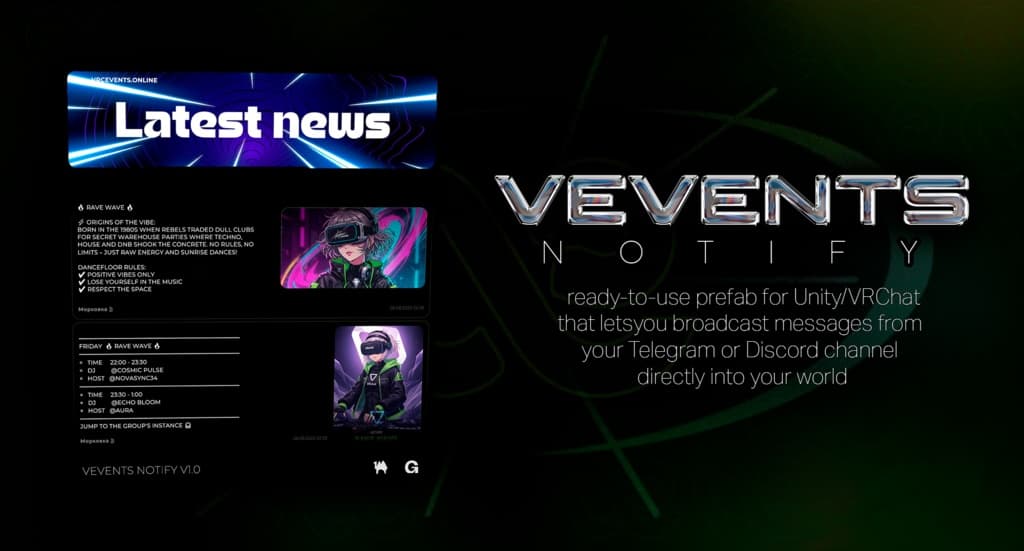
説明
◆ 【 VEVENTS — Unity/VRChat 用フィード・プレハブ (JA) 】
VRChat ワールドにメッセージ/通知フィードを表示するためのプレハブです。サーバー構築は不要。あなたの専用コード (ID) を入力し、プレハブをシーンへ配置するだけで使えます。
◆ 【 TUTORIAL 】 https://www.youtube.com/watch?v=EM_Q4OPxCA4
✦ 要件:
- Unity 2022.3.22f1
- VRChat SDK 3.8.2
- UdonSharp
✦ 同梱物:
- プレハブ:
unity-prefab-proj/Assets/VEVENTS/Prefabs/FeedController.prefab - スクリプト:
FeedControllerU,MessageItemSlotU,MessageItemU,BrandGuardU,NoKeyScrollRectU - セットアップウィザード: Unity メニュー
VEVENTS/Setup Wizard
✦ 使い方 (サーバー不要):
- ボットからあなたのコード/ID を取得します。
- Telegram: チャンネル/コミュニティに
@vevents_notify_botを管理者として追加。連携後、チャンネル所有者と追加したユーザーへ DM でコードが届きます。必要に応じてボットへ/my_channelsを送信すると一覧で確認できます。 - Discord: ボットを招待 https://discord.com/oauth2/authorize?client_id=1403797293911769210&permissions=117760&integration_type=0&scope=bot+applications.commands 後、対象テキストチャンネルで
/connect。ボットがあなたにのみ見えるエフェメラル返信でコードを返します。
- Telegram: チャンネル/コミュニティに
- VRChat SDK と UdonSharp を導入した Unity プロジェクトを開きます。
FeedController.prefabをシーンにドラッグ&ドロップします。VEVENTS/Setup Wizardを開く (またはFeedControllerUインスペクターのOpen VEVENTS Setupをクリック)。User/Bot IDにコードを入力し、Assign Allをクリック (FeedUrlとImageUrlsを自動設定)。- Play Mode で表示を確認。画像は VRChat の制限により順次 (約5秒/枚) 読み込まれます。
✦ 注意:
- 許可リスト外ドメインを利用する場合、VRChat クライアントの「Allow Untrusted URLs」を有効化してください。
- ランタイムで
VRCUrlは生成できません。URL はインスペクターまたはウィザードで割り当てます。 - ランタイムでの
Instantiateは行いません。メッセージスロットはプレハブ内にあらかじめ配置済みです。 - ウィザードには
Auto-FindボタンとPreviewセクションがあり、割り当て予定の URL を事前に確認できます。
✦ ドキュメント:
- RU:
Assets/VEVENTS/Documentation/Prefab_User_Guide_RU.md - EN:
Assets/VEVENTS/Documentation/Prefab_User_Guide_EN.md - JA:
Assets/VEVENTS/Documentation/Prefab_User_Guide_JA.md
─ ✦ • ✦ • ✦ • ✦ • ✦ • ✦ ─
◆ 【 VEVENTS — Prefab feed for Unity/VRChat (EN) 】
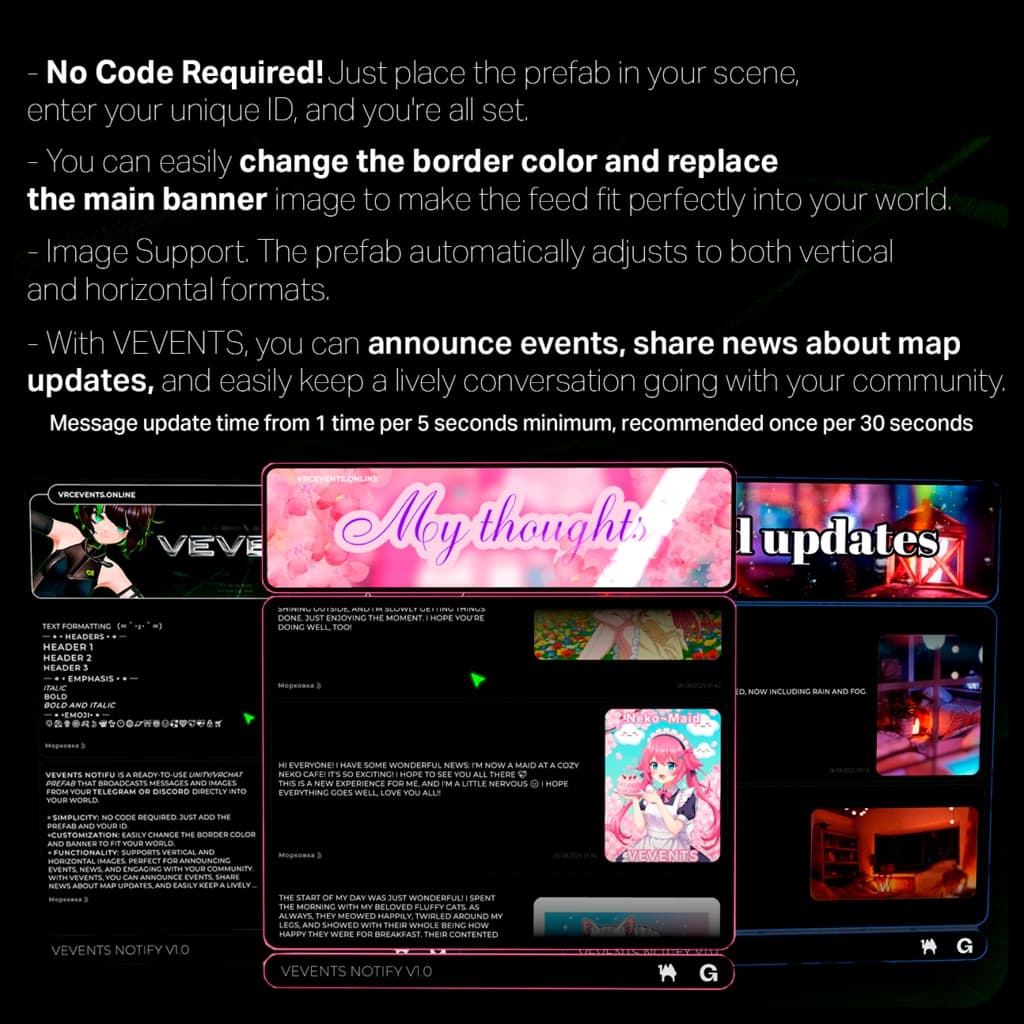
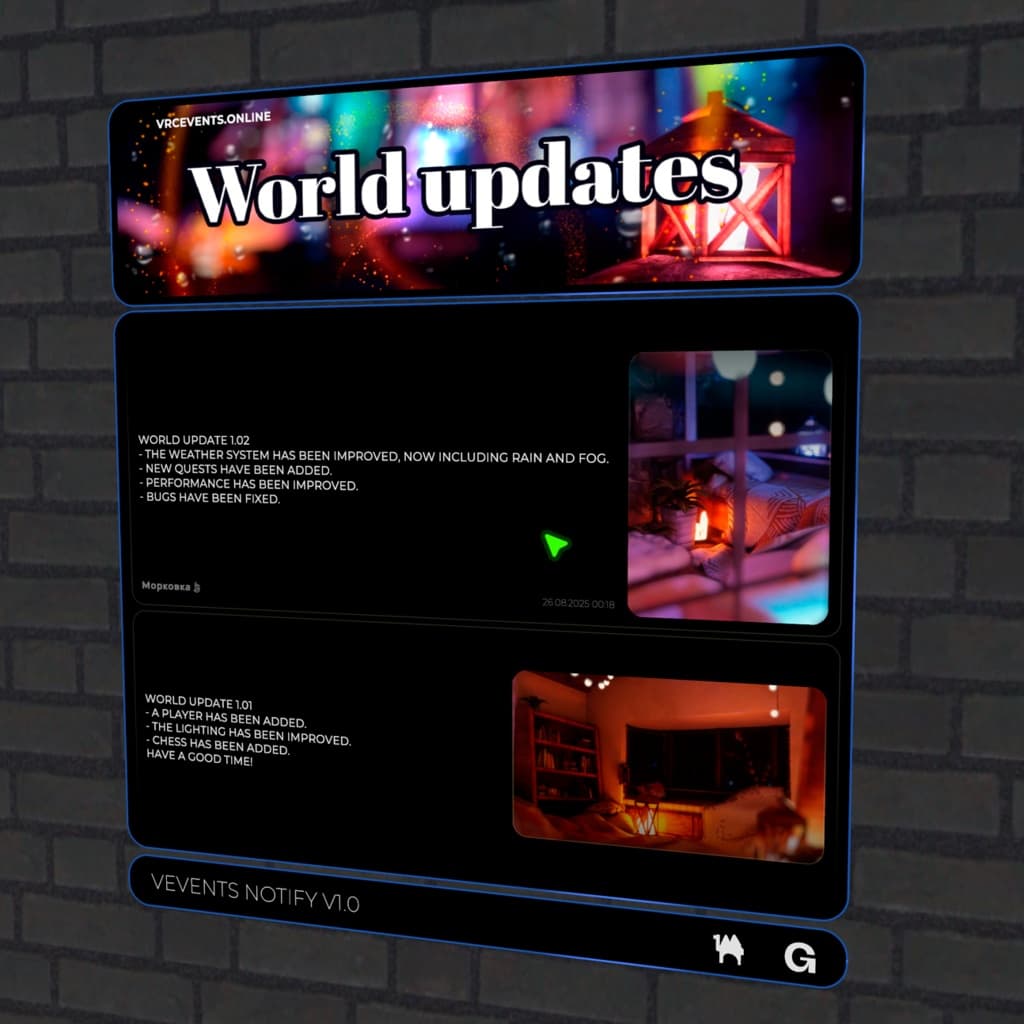
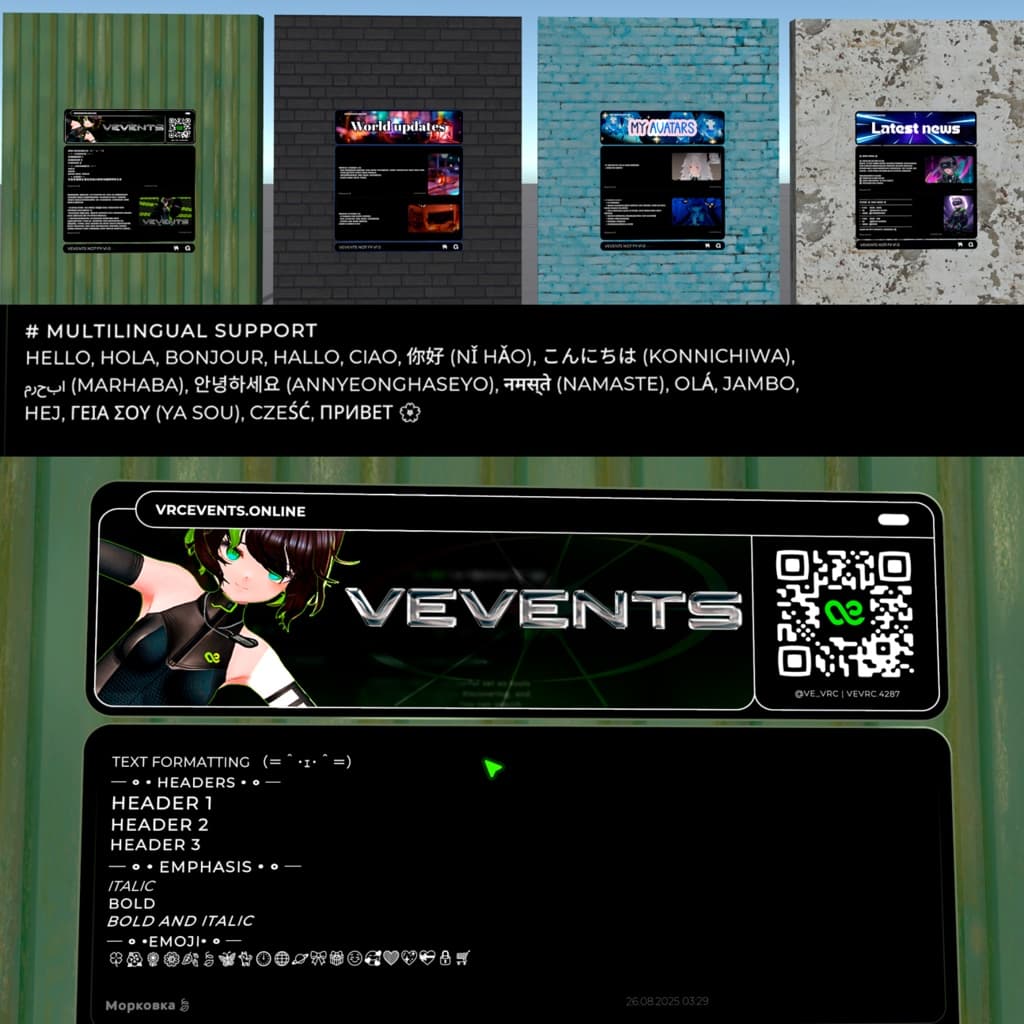
Ready-to-use prefab to display a feed of messages/notifications from your Telegram/Discord channel in your VRChat world. No server setup required — just enter your unique ID and drop the prefab into the scene.
✦ Requirements:
- Unity 2022.3.22f1
- VRChat SDK 3.8.2
- UdonSharp
✦ What’s included:
- Prefab:
unity-prefab-proj/Assets/VEVENTS/Prefabs/FeedController.prefab - Scripts:
FeedControllerU,MessageItemSlotU,MessageItemU,BrandGuardU,NoKeyScrollRectU - Setup Wizard: Unity menu
VEVENTS/Setup Wizard
✦ How to use:
- Get your code/ID from bots:
- Telegram: add
@vevents_notify_botto your channel as an admin. The bot will DM the code to the channel owner and to the user who added the bot. If needed, DM the bot/my_channels. - Discord: invite the bot https://discord.com/oauth2/authorize?client_id=1403797293911769210&permissions=117760&integration_type=0&scope=bot+applications.commands and in the target text channel run
/connect. The bot replies with an ephemeral code (visible only to you).
- Telegram: add
- Open the Unity project with VRChat SDK + UdonSharp.
- Drag
FeedController.prefabinto your scene. - Open
VEVENTS/Setup Wizard(or clickOpen VEVENTS Setupin theFeedControllerUinspector), enter yourUser/Bot ID, clickAssign All(auto-fillsFeedUrlandImageUrls). - Enter Play Mode and verify the feed. Images load sequentially (~1 per ~5s due to VRChat limits).
✦ Notes:
- For non-allowlisted domains, enable "Allow Untrusted URLs" in the VRChat client.
VRCUrlcannot be created at runtime — URLs are assigned in the Inspector/wizard.- No runtime
Instantiate: all message slots are pre-placed in the prefab. - The wizard provides
Auto-Findand aPreviewsection to inspect generated URLs before assigning.
✦ Docs:
- RU:
Assets/VEVENTS/Documentation/Prefab_User_Guide_RU.md - EN:
Assets/VEVENTS/Documentation/Prefab_User_Guide_EN.md - JA:
Assets/VEVENTS/Documentation/Prefab_User_Guide_JA.md
─ ✦ • ✦ • ✦ • ✦ • ✦ • ✦ ─
◆ CONTACTS ✦ Discord Server : https://discord.gg/dzhUzNS45n ✦ Twitter : https://x.com/ve_vrc ✦ VRChat group : https://vrc.group/VEVRC.4287