

[VRoid] Genshin Impact Diluc Hair Asset
 Soli's Oddities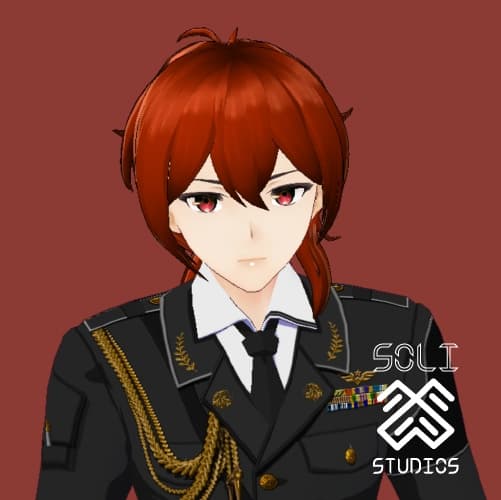
説明
»»————- ★ ————-«« DETAILS »»————- ★ ————-««
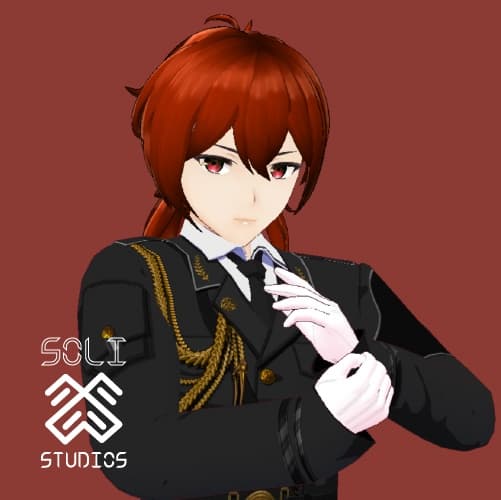
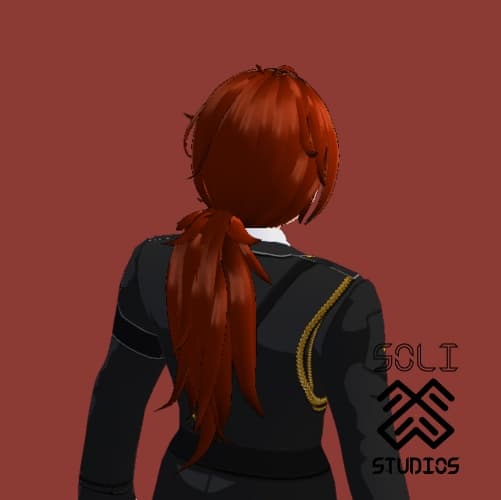
{Genshin Impact Diluc} Hair Model
100% made from scratch by Soli
Bones added
DISCLAIMER: I do not own this costume, i am also not reselling this costume. These downloadable files are HAIR PRESETS ONLY. Full credits go to WonderfulPS Store for this amazing outfit set!
»»————- ★ ————-«« Soli's Rules & Conditions »»————- ★ ————-««
➴ No reselling / redistribution of the assets.
➴ Allowed to use commercially on completed models.
➴ You cannot use these assets on free models.
➴ Do not allow other people to take my asset from your models.
➴ Do not tear apart my model/assets or make changes.
➴ No edits { Retexturing / sculpting model }.
➴ You are not allowed to claim these Assets as your own work.
➴ Please credit me when using any of my assets & models.
➴ No refunds or returns after purchasing!
➴ Do not rename these files. Damage done to files are not my responsibility.
»»————- ★ ————-«« How to Import into VRoid Studio on WINDOWS »»————- ★ ————-««
These assets are VRoid Studio assets ONLY. Please unzip the ZIP Files before importing.
➴ In your Folders, go to C:\Users(Your user name)\AppData\LocalLow\pixiv\VRoidStudio\hair_presets
➴ Drag Assets into preset folder. DO NOT rename folder. Only change the number if you have two of the same folder names {ex. If you have a "Preset 11", rename asset to "Preset 12"}
➴ Open/Restart VRoid, go into hair editor, click on the Preset dropdown menu, and the name should pop up as Soli's {name} Hair!
➴ Select, load Preset and enjoy!
➴ Here is a helpful youtube tutorial for my visual learners~ https://www.youtube.com/watch?v=kj_tcDzE4A0
»»————- ★ ————-«« How to Import Assets into VRoid Studios on MAC OS »»————- ★ ————-««
These assets are VRoid assets ONLY. Please unzip the ZIP Files before importing.
➴ Open Finder and press Shift + CMD + G
➴ Type in " ~/Library/Application Support/com.Company.ProductName/hair_presets/ " OR " ~/Library/Application Support/com.pixiv.vroid.macosx/hair_presets/ " (if you dont have one, find the other)
➴ Drag your downloaded assets into hair_presets folder. DO NOT rename folder. Only change the number if you have two of the same folder names {ex. If you have a "Preset 11", rename asset to "Preset 12"}
➴ Open/Restart VRoid, go into hair editor, click on the Preset dropdown menu, and the name should pop up as Soli's {name} Hair!
➴ Select, load Preset and enjoy!
➴ Here is a helpful youtube tutorial for my visual learners~ https://www.youtube.com/watch?v=yYK8ffQRDSk »»————- ★ ————-«« Thank you for supporting my Pixiv Booth! Have a wonderful day~ »»————- ★ ————-««